






Top 5 Best WordPress Plugins for an E-Store That Will Save You Time in 2026
Running a WordPress e-commerce store can look simple from the outside: upload products, accept payments, ship orders, and watch the sales come in.
In reality, store owners spend a surprising amount of time on repetitive tasks.
You have to optimize product pages, check website speed, manage SEO, import or update hundreds of products, create backups, troubleshoot emails, and make sure every part of the store continues working after updates.
The right WordPress plugins can remove a large portion of that manual work.
In this guide, EG-WP has selected five of the best WordPress plugins for e-commerce stores that can help you automate repetitive tasks, improve performance, protect your store, and spend more time growing the business instead of maintaining the website.
And WordPress is not a small ecosystem.
As of October 3, 2026, W3Techs reports that WordPress powers 40.2% of all websites on the internet and holds approximately 58.6% of the CMS market. WooCommerce alone is detected on approximately 7.9% of all websites, according to the same source.
That enormous ecosystem is one reason WordPress store owners have access to thousands of plugins.
The problem is deciding which ones are actually worth installing.
Too many plugins can introduce unnecessary code, increase maintenance requirements, create compatibility problems, and sometimes slow down your store.
So instead of installing every plugin you find, the better strategy is to build a smaller stack of tools that solve important problems automatically.
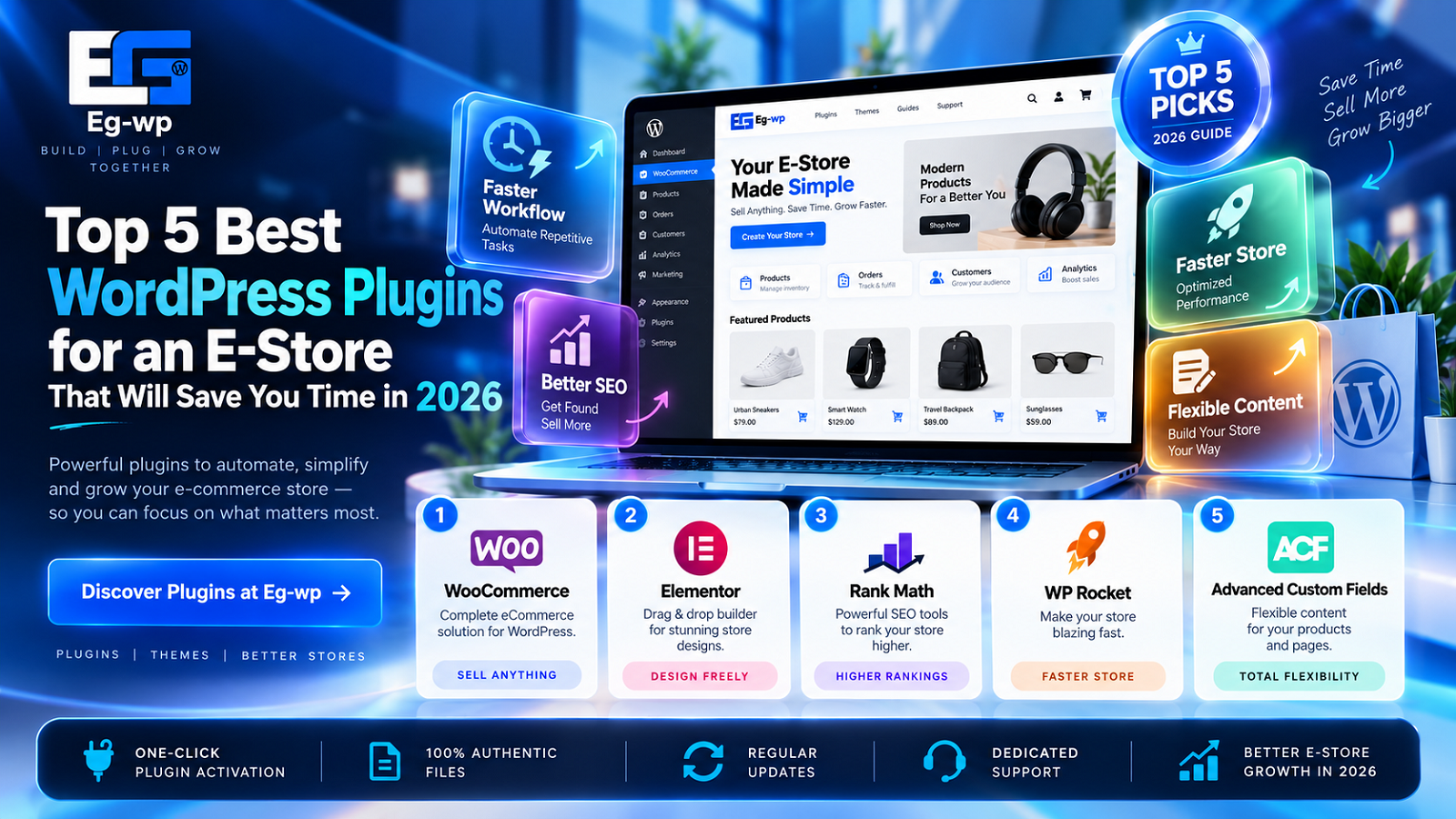
The 5 Plugins We Recommend
For this guide, we selected:
- WP Rocket – website performance and caching
- Rank Math SEO – product and store SEO
- WP All Import – bulk product management
- UpdraftPlus – automated backups
- WP Mail SMTP – reliable transactional emails
Each plugin solves a different problem, but they have one thing in common:
They can reduce the amount of repetitive work required to operate a WordPress e-store.
Let’s start with one of the most important areas of any online shop: speed.
1. WP Rocket – Best Plugin for Saving Time on WordPress Speed Optimization
A fast e-commerce website is no longer just a technical luxury.
It can affect how long visitors stay on your store, whether they continue to product pages, whether they reach the cart, and ultimately whether they purchase.
That makes performance optimization particularly important for WooCommerce stores.
Why Site Speed Matters for an E-Store
There is strong real-world evidence connecting better website performance with better business results.
For example, Google’s web.dev published a case study showing that Vodafone achieved a 31% improvement in Largest Contentful Paint (LCP) and recorded an 8% increase in sales, together with an 11% improvement in its cart-to-visit rate.
A newer 2026 e-commerce case study from Nuvemshop is even more relevant.
After improving the performance of more than 180,000 online stores, the company reported that its Core Web Vitals pass rate increased from 48% to 72%, while mobile visitors from Google organic search experienced an 8.9% increase in conversion rate and an 8.4% increase in cart engagement.
That does not mean installing a caching plugin automatically increases your sales by 8.9%.
Performance improvements, store design, traffic quality, products, pricing, checkout experience, and many other variables affect conversion.
What these studies do demonstrate is that website performance can have measurable commercial value.
And this is where WP Rocket becomes useful.
What Does WP Rocket Do?
WP Rocket is a premium WordPress performance plugin designed to automate many of the optimizations that would otherwise require several plugins or manual server and code configuration.
Once configured, it can handle tasks such as:
- Page caching
- Cache preloading
- Browser-side performance optimizations
- CSS optimization
- JavaScript optimization
- Delayed JavaScript execution
- Lazy-loading related optimizations
- Critical image optimization
- Database optimization
- CDN integration
WP Rocket’s documentation confirms that the plugin can automatically enable page caching, cache preloading, link preloading and several other performance optimizations.
For store owners, the biggest advantage is not simply having more performance options.
It is having many of those options controlled from one WordPress dashboard.
Example
Without a tool such as WP Rocket, you might need to separately configure:
- A caching solution
- CSS minification
- JavaScript optimization
- Lazy loading
- Preloading
- Database cleanup
- CDN integration
Each additional tool adds another settings panel, another plugin to update, and potentially another compatibility issue to diagnose.
WP Rocket combines many of these tasks into one system.
That can save considerable maintenance time.
Remove Unused CSS
Modern WordPress themes and page builders often load CSS that is not actually needed on every page.
Your product page, for example, may load styles created for elements that only appear on your homepage.
WP Rocket includes a Remove Unused CSS feature designed to automatically generate CSS containing only what a specific page needs.
According to WP Rocket’s documentation, this can:
- Reduce overall page size
- Reduce the number of CSS requests
- Reduce page-loading time
- Improve Core Web Vitals
- Reduce render-blocking CSS
For someone managing a store without a dedicated performance developer, automating this type of optimization can be much faster than manually analyzing stylesheets and editing theme code.
Delay JavaScript Execution
JavaScript can also become a major source of performance problems on WordPress e-commerce websites.
Analytics scripts, chat widgets, sliders, advertising pixels, review systems, popups, WooCommerce extensions, and page builders may all add scripts.
WP Rocket’s Delay JavaScript Execution feature delays applicable scripts until they are required. Its documentation notes that the feature can help metrics such as Total Blocking Time and First Contentful Paint and may improve other Core Web Vitals as well.
Again, the important part for a busy store owner is automation.
Instead of manually modifying script loading behavior in your theme, you can manage the optimization from WordPress.
WP Rocket and WooCommerce
Caching an e-commerce store requires more care than caching a simple blog.
Pages containing dynamic customer information—such as carts, checkout sessions, and logged-in account information—must be treated differently from ordinary static content.
That is one reason using a mature caching solution is important.
For product pages and category pages, however, effective caching can significantly reduce the amount of work your server needs to perform for each visitor.
WP Rocket’s page caching serves generated cached files rather than executing PHP for every eligible request, which can improve overall page-loading performance.
Who Should Use WP Rocket?
WP Rocket makes the most sense for:
WooCommerce stores with many products:
More products usually mean more pages, images, scripts, database requests, and opportunities for performance problems.
Stores using Elementor or other page builders:
Visual builders make website creation faster but can create heavier pages containing additional CSS and JavaScript.
Store owners who do not want to manually configure caching:
WP Rocket is designed to automate many common performance settings.
Agencies managing several WordPress stores:
Using a familiar performance workflow across several client websites can dramatically reduce repetitive setup work.
The Time-Saving Benefit
WP Rocket does not replace good hosting, proper image optimization, clean plugins, or performance monitoring.
What it can replace is a considerable amount of repetitive technical configuration.
Instead of spending hours trying to separately optimize caching, JavaScript execution, CSS delivery, preload behavior, and other settings, the store owner gets a centralized performance toolkit.
For an e-commerce business, that means more time can go toward:
products, marketing, SEO, customer experience, and sales.
And performance is only one part of the equation.
Your store also needs customers to actually find those product pages.
That brings us to the second plugin on our list: Rank Math SEO.
2. Rank Math SEO – Best Plugin for Saving Time on E-Commerce SEO
Getting a WooCommerce store online is only the beginning.
The next challenge is getting potential customers to discover it.
Every product page you create gives Google another opportunity to understand your website, but optimizing hundreds of product pages manually can become one of the most time-consuming parts of managing an e-commerce store.
You may need to manage:
- SEO titles
- Meta descriptions
- Canonical URLs
- XML sitemaps
- Product Schema
- Open Graph information
- Redirects
- Internal links
- Indexing settings
- Broken links and 404 errors
Doing all of this manually is possible.
Doing it manually across 500, 1,000, or 10,000 products is another story.
This is where Rank Math SEO becomes especially useful.
As of October 2026, Rank Math has more than 4 million active WordPress installations and a 4.8/5 rating on WordPress.org, making it one of the largest SEO plugins in the WordPress ecosystem.
For e-commerce stores, its biggest benefit is not simply that it provides SEO settings.
It brings many tasks that would normally require separate tools into one dashboard.
What Does Rank Math Do?
Rank Math is a complete WordPress SEO plugin.
For an e-commerce store, you can use it to manage technical SEO and on-page optimization without manually editing theme files.
Depending on your configuration and version, its toolkit includes features for:
- SEO titles and descriptions
- XML sitemaps
- Schema markup
- Redirections
- 404 monitoring
- Search Console integration
- Keyword optimization
- Internal linking suggestions
- Product SEO
- Social metadata
- Breadcrumbs
- Local SEO
- Robots directives
This becomes particularly valuable once your store starts growing.
Imagine a store with 2,000 products.
Even if you spent only two minutes manually checking basic SEO information for every product, that would represent roughly:
2,000 × 2 minutes = 4,000 minutes
That is more than 66 hours of work.
Automation does not eliminate the need for good product copy, keyword research, or editorial review, but it can significantly reduce repetitive configuration.
Rank Math for WooCommerce Product SEO
One of Rank Math’s most useful e-commerce features is its WooCommerce integration.
Google does not see a product page in exactly the same way a human shopper does.
Search engines rely on the visible content of the page, internal links, metadata, structured data, and other signals to understand what a page represents.
For products, structured data is especially important.
Rank Math supports WooCommerce Product Schema, allowing product pages to communicate structured product information to search engines.
Depending on the product information available, structured data can describe details such as:
- Product name
- Description
- SKU
- Brand
- Pricing
- Availability
- Reviews
- Ratings
This type of structured information can help search engines understand that a particular URL represents a product rather than an ordinary article or landing page.
Why Product Schema Matters
Suppose you sell a premium WordPress theme.
A normal search engine result might simply display:
Premium WordPress Theme – EG-WP
With properly implemented product information and structured data, search engines may have more context about the offer, including price, availability, ratings, and other attributes when those features are supported and eligible.
That does not guarantee rich results.
Google determines whether enhanced search features appear.
However, providing valid structured product information means you are giving search engines more machine-readable context about your product.
And doing this automatically is far more practical than manually writing JSON-LD Schema markup for every product.
Automating SEO Templates
Here is another major time-saving feature.
Most stores follow patterns.
For example, you may want your product titles in Google to follow this format:
Product Name – Buy WordPress Plugin | EG-WP
Instead of writing that format manually for every product, an SEO plugin can apply title templates dynamically.
For example:
%product_title% – WordPress Plugin | EG-WP
If your store contains 1,500 products, that means the format can be applied across the catalog without manually editing 1,500 SEO titles.
You can still customize important products individually.
But repetitive work is handled automatically.
That is exactly the kind of automation an e-store needs.
XML Sitemaps Without Manual Work
A sitemap helps search engines discover the URLs on your website.
For a WooCommerce store, that could include:
- Product pages
- Product categories
- Brand archives
- Blog posts
- Pages
- Images
- Other taxonomies
Manually creating and updating a sitemap would be impractical for a store whose catalog changes every week.
Rank Math generates XML sitemaps automatically and updates them as content changes.
If you:
- Add a product
- Remove a product
- Publish a category
- Update content
the sitemap system can reflect those changes without requiring you to regenerate a static file manually.
For a dynamic e-commerce website, this is a major operational advantage.
Built-In 404 Monitoring and Redirects
Product catalogs change.
Sometimes you discontinue a product.
Sometimes a URL changes.
Sometimes a category gets renamed.
If old URLs continue receiving traffic or backlinks, visitors may end up on a 404 page.
Rank Math includes tools for monitoring 404 errors and managing redirects, meaning you do not necessarily need an additional plugin for every redirect-related task. Its current WordPress.org listing specifically includes redirection and 404-related functionality among its SEO toolset.
For example:
Old URL:
eg-wp.com/product/plugin-old-version
New URL:
eg-wp.com/product/plugin-new-version
You can redirect the old address to the replacement instead of leaving customers at a dead end.
That helps both users and search engines.
Why Rank Math Can Save an E-Store Owner Time
Without a unified SEO plugin, you might end up using separate tools for:
- XML sitemaps
- Product Schema
- Redirect management
- 404 monitoring
- SEO metadata
- Search Console data
- Social metadata
More plugins can mean:
More updates.
More settings.
More possible conflicts.
More time learning different interfaces.
Rank Math combines many of these tasks into one workflow.
For a WordPress store owner who handles marketing and website maintenance personally, that simplification can be extremely valuable.
Where Rank Math Does NOT Save You Time
There is one important distinction.
Rank Math can automate technical SEO tasks.
It cannot automatically create a strong SEO strategy for your business.
You still need to understand:
- What customers search for
- Which keywords have commercial intent
- How competitive those keywords are
- Which pages should target which searches
- How to write useful product descriptions
- How to structure your categories
- How to build useful internal links
Think of Rank Math as the infrastructure.
It makes implementing your SEO strategy faster.
It does not replace the strategy itself.
Best For
Rank Math is particularly useful for:
WooCommerce stores with large catalogs
Because applying SEO templates manually across thousands of products would take an enormous amount of time.
Stores publishing regular content
If your e-store also has a blog, tutorials, reviews, comparisons, and landing pages, managing everything through one SEO platform simplifies the workflow.
Store owners who want fewer plugins
Using one plugin for Schema, sitemaps, redirects, and SEO metadata can keep the WordPress backend cleaner.
Agencies
If you manage several e-commerce websites, having a repeatable SEO configuration can dramatically accelerate new site setups.
3. WP All Import – Best Plugin for Bulk Product Management
Now imagine this situation.
Your supplier sends you an Excel spreadsheet containing:
4,500 products.
For every product, you have:
- Product title
- SKU
- Description
- Regular price
- Sale price
- Stock quantity
- Category
- Brand
- Product image URL
- Attributes
- Variations
You could open WooCommerce and manually create those products one by one.
But if each product took only three minutes to create, the work would require:
4,500 × 3 minutes = 13,500 minutes
That is:
225 hours of manual work.
At eight working hours per day, that represents more than 28 full working days.
This is exactly the kind of task that WP All Import is designed to eliminate.
What Is WP All Import?
WP All Import is a WordPress plugin designed to import data from files such as:
- CSV
- XML
- Excel
- Google Sheets
into WordPress.
Its WooCommerce integration can be used to import products and map source information to WooCommerce fields using a visual drag-and-drop workflow.
The core WP All Import plugin itself has a long-standing presence on WordPress.org, while its WooCommerce-specific ecosystem supports product imports, customers, orders, reviews, and other WooCommerce data.
For businesses working with large product catalogs, this can turn days of manual data entry into a much more manageable process.
Import Thousands of WooCommerce Products
One of the strongest selling points of WP All Import is scale.
According to the developers, its WooCommerce product importer is designed to set up imports involving thousands of products and supports mapping data into WooCommerce product fields.
Instead of manually creating products, you upload or connect your source file.
Then you map fields.
For example:
| Supplier File | WooCommerce |
|---|---|
| item_name | Product Name |
| sku_code | SKU |
| retail_price | Regular Price |
| sale | Sale Price |
| stock | Stock Quantity |
| img_url | Product Image |
| description | Product Description |
Once mapped, WP All Import can create the products automatically.
The source file also does not necessarily have to match WooCommerce’s native format.
That is important.
Suppliers rarely send product data in exactly the structure your website expects.
WP All Import is built around mapping the supplier’s structure to WordPress rather than forcing you to manually restructure every spreadsheet first.
Import Product Images Automatically
Images can be one of the slowest parts of creating products manually.
Normally you might have to:
- Download the image.
- Rename it.
- Upload it to WordPress.
- Attach it to the product.
- Repeat.
For hundreds of products, that quickly becomes exhausting.
WP All Import can import images from URLs and place them into the WordPress media library and relevant product galleries.
So if your supplier spreadsheet contains:
https://supplier.com/images/product123.jpg
WP All Import can use that URL as part of the import.
For large stores, this is a huge time saver.
Variable Products
Variable products are notoriously time-consuming to configure manually.
Consider something simple like a T-shirt.
You may have:
Sizes:
S, M, L, XL
Colors:
Black, White, Red, Blue
That creates potentially:
4 × 4 = 16 variations
And each variation might have its own:
- SKU
- Stock quantity
- Price
- Image
Now multiply that by hundreds of products.
WP All Import supports standard WooCommerce product types, including variable products, and its documentation specifically covers mapping attributes and variations.
That is where automation starts saving not minutes, but entire workdays.
Scheduled Product Updates
This may be the most important WP All Import feature for certain e-commerce businesses.
Suppose your supplier updates prices and stock every morning.
Without automation, someone must:
- Download the supplier file.
- Compare it with WooCommerce.
- Update prices.
- Update stock.
- Add new products.
- Remove discontinued products.
Every day.
WP All Import supports recurring imports, including scheduled product updates using its scheduling options or cron-based workflows.
That means your workflow can become:
Supplier updates file → Import runs → WooCommerce updates
instead of:
Supplier updates file → Employee manually edits hundreds of products
The time-saving potential is enormous.
Update Only What You Want
Automation becomes dangerous if every import overwrites everything.
Suppose your marketing team manually writes improved product descriptions.
But your supplier feed contains very basic descriptions.
You may want imports to update:
- Stock
- Price
without modifying:
- Description
- SEO content
- Product title
WP All Import gives users control over which fields are updated in recurring imports. Its documentation explains that existing content can be updated selectively while other information remains untouched.
That makes the workflow much safer.
Example: Managing 10,000 Products
Imagine EG-WP operates a catalog containing 10,000 WordPress-related digital products.
A supplier updates prices every week.
Even if manually checking each product took only 30 seconds:
10,000 × 30 seconds = 5,000 minutes
That equals more than:
83 hours of work.
For one update.
With an automated feed, that process can instead be handled by a scheduled import once the mapping and validation workflow have been configured.
The initial setup takes time.
The recurring savings are where the real value appears.
WP All Import by the Numbers
The company behind WP All Import states that its platform is used by more than 12,000 customers across 62 countries.
Its WooCommerce product-import page also states that more than 100,000 users have used its WooCommerce-focused solution and highlights more than 1,500 five-star reviews associated with its product-import offering.
Those figures are vendor-reported rather than independently audited market-share statistics, so they should be understood in that context.
Still, they show why WP All Import has become one of the better-known tools for WordPress catalog automation.
Best Uses for WP All Import
WP All Import becomes especially valuable when you run:
Dropshipping stores
Supplier feeds can be used to keep products, prices, and inventory synchronized.
Large WooCommerce catalogs
Managing thousands of products manually becomes increasingly inefficient.
Affiliate stores
Products and external information can be imported from structured feeds.
Stores migrating from another platform
Product information can be exported and imported instead of recreated one product at a time.
Multi-supplier stores
Different product feeds can be mapped into a consistent WooCommerce structure.
Rank Math vs WP All Import: Two Different Types of Automation
Rank Math and WP All Import solve completely different problems.
But together, they demonstrate an important principle.
A successful WooCommerce store should automate repetitive operations, not just add more features.
Rank Math reduces repetitive SEO administration.
WP All Import reduces repetitive product management.
And when your store grows, that distinction becomes extremely important.
Saving five minutes once does not matter much.
Saving five minutes across 5,000 products every month does.
Coming Up Next
We have now covered three of the five plugins:
- WP Rocket – Performance automation
- Rank Math SEO – SEO automation
- WP All Import – Product management automation
But there are two other tasks that store owners often ignore until something goes wrong:
Backups and email delivery.
In Part 3, we will cover:
#4 UpdraftPlus – How to automate backups and protect an e-commerce store
and
#5 WP Mail SMTP – How to make WooCommerce order emails more reliable while reducing troubleshooting time
4. UpdraftPlus – Best Plugin for Automated WordPress Backups
Most store owners think about backups only after something breaks.
That is a dangerous approach for an e-commerce website.
A WooCommerce store is constantly changing.
Every day, your website may receive:
- New customer accounts
- New orders
- Product updates
- Stock changes
- Payment information
- Customer reviews
- Website edits
- Plugin updates
- Theme updates
- Database changes
If something goes wrong, restoring an old website copy could mean losing recent orders, customer information, or hours of work.
That is why a reliable backup system should be considered part of the basic infrastructure of any serious WordPress e-store.
One of the most established options is UpdraftPlus.
As of October 2026, the WordPress.org directory lists UpdraftPlus at more than 4 million active installations.
That puts it among the most widely installed WordPress backup plugins available.
What Does UpdraftPlus Do?
UpdraftPlus allows WordPress website owners to create backups of their:
- WordPress database
- Plugins
- Themes
- Uploads
- Other WordPress files
The plugin can create backups manually or automatically according to a predefined schedule.
The official WordPress.org listing states that scheduled backups can run at intervals including:
- Every 2 hours
- Every 4 hours
- Every 8 hours
- Every 12 hours
- Daily
- Weekly
- Fortnightly
- Monthly
It can also send backup files to remote storage services instead of keeping everything on the same server.
That last point is especially important.
Why You Should Not Keep Your Only Backup on the Same Server
Imagine that your WordPress website and your backup both live on the same hosting account.
Then the server experiences a major failure.
You could lose:
the website and the backup at the same time.
That defeats the purpose of having a backup.
UpdraftPlus supports remote destinations such as:
- Google Drive
- Dropbox
- Amazon S3
- FTP
- Rackspace Cloud
- OpenStack Swift
- DreamObjects
Additional storage providers are available through its paid version, including Microsoft OneDrive, Google Cloud, Backblaze B2, SFTP, WebDAV, and others.
For an e-store, a much safer strategy is:
Website → Hosting Server
while:
Backup → Independent Cloud Storage
This creates separation between the live website and the recovery copy.
Automated Backups Save Time
Without an automated backup plugin, someone may need to manually:
- Export the database.
- Download WordPress files.
- Compress everything.
- Upload the archive somewhere safe.
- Organize previous backup versions.
- Repeat the process regularly.
That is not difficult once.
The problem is doing it every day or every week.
Suppose manual backup work takes only 15 minutes each week.
Over one year:
15 minutes × 52 weeks = 780 minutes
That equals:
13 hours per year
And that is for only one website.
For an agency managing 20 WordPress sites:
13 × 20 = 260 hours
Automation turns that repetitive maintenance task into something that can largely run according to a schedule.
Different Backup Schedules for Different Data
Not all parts of a store change at the same speed.
Your theme may change once every few months.
Your database could change every few minutes.
For example:
A customer places an order.
WooCommerce records that order in the database.
A second customer creates an account.
Another database change.
Someone leaves a review.
Another database change.
Inventory changes.
Another database change.
This means e-commerce stores may need more frequent database backups than relatively static websites.
Your exact schedule depends on store activity, hosting architecture, backup method, and how much recent data you can afford to lose.
A small store might use daily database backups.
A busy store processing large numbers of orders may require much more frequent protection or a specialized real-time backup strategy.
The important point is that the backup schedule should reflect how frequently the website changes.
Restore Your Store Instead of Rebuilding It
The real value of a backup appears during restoration.
Imagine updating a plugin and suddenly seeing:
There has been a critical error on this website.
Or perhaps:
- Checkout stops working.
- Product pages disappear.
- A theme update breaks the design.
- A configuration error damages the site.
- Files become corrupted.
- An unwanted change affects hundreds of products.
Without a usable backup, troubleshooting might require hours.
In serious cases, you might need to rebuild parts of the website.
UpdraftPlus is designed to restore WordPress backups from its interface, with its WordPress.org listing promoting a restore workflow that can be completed in a few steps.
The important word here is usable.
Having a backup file is not enough.
A good backup strategy should also include periodic restore testing.
A backup you have never tested should not automatically be assumed to work perfectly.
Backup Before WordPress Updates
Updates are necessary.
They can fix:
- Security vulnerabilities
- Bugs
- Compatibility problems
- Performance issues
But updates can occasionally introduce conflicts.
That risk becomes more important in an e-commerce environment because WooCommerce stores often depend on several interconnected components:
WordPress Core + Theme + WooCommerce + Payment Gateway + Page Builder + Extensions + Custom Code
If one element becomes incompatible, another part of the store may stop working.
UpdraftPlus has continued adding update-related backup functionality; its 2026 changelog specifically mentions an auto-backup-before-update workflow in the plugin.
The general maintenance workflow should therefore be:
Backup → Update → Test
rather than:
Update → Something breaks → Start searching for an old backup
What Should You Test After an Update?
For a WooCommerce store, testing should include more than checking whether the homepage loads.
At minimum, check:
- Homepage
- Product page
- Product variations
- Add to cart
- Cart page
- Checkout
- Payment gateway
- Customer account
- Transactional emails
- Mobile layout
If everything works correctly, continue.
If an update causes a serious issue, a recent backup gives you a recovery path.
Why This Saves More Than Maintenance Time
Backups are slightly different from the other plugins in this list.
WP Rocket can save optimization time.
Rank Math can save SEO administration time.
WP All Import can save catalog-management time.
UpdraftPlus can potentially save recovery time.
And recovery time can be expensive.
Consider a store that generates:
$500 per hour in revenue.
If a technical problem makes checkout unavailable for three hours, the theoretical revenue exposure could be:
$500 × 3 = $1,500
That does not mean every three-hour outage automatically loses exactly $1,500.
Customers may return later, traffic fluctuates, and many other factors affect revenue.
But the example illustrates why recovery speed matters.
For a commercial website, backups are not simply storage files.
They are part of business continuity.
Best For
UpdraftPlus is particularly useful for:
WooCommerce stores
Because orders, inventory, accounts, and other store data change continuously.
Freelancers
Automated backups reduce routine maintenance work across client websites.
WordPress agencies
Scheduled backups are much easier to manage than manually exporting each site.
Website owners who frequently update plugins
Having a recent recovery point reduces the risk of maintenance work.
5. WP Mail SMTP – Best Plugin for Saving Time on WooCommerce Email Troubleshooting
Now we reach one of the most overlooked parts of an e-commerce store:
email.
Imagine a customer purchases a product.
The payment is successful.
But they never receive the order confirmation.
They contact support.
Your employee checks WooCommerce.
The order exists.
Then they resend the email.
The customer still does not receive it.
Now someone has to investigate:
- WooCommerce
- WordPress
- Hosting
- Spam filters
- DNS records
- Email authentication
- SMTP
- The customer’s inbox
One email problem can quickly turn into a customer-support problem.
Multiply that across hundreds of customers and it can consume a significant amount of time.
This is the problem WP Mail SMTP is designed to help solve.
Why WordPress Email Can Be Unreliable
By default, WordPress typically sends email through its wp_mail() function.
But the actual ability to deliver that email depends on the server and its mail configuration.
Simply generating an email does not guarantee that the recipient’s inbox will accept it.
Modern email providers evaluate many signals when deciding whether a message should reach:
- The inbox
- Spam
- Quarantine
- Or be rejected entirely
A more reliable WordPress setup typically uses an authenticated email provider rather than relying entirely on basic hosting mail behavior.
WP Mail SMTP connects WordPress to dedicated email services and SMTP/API-based sending methods.
Its official documentation supports mailers and providers including:
- Gmail / Google Workspace
- Microsoft 365 / Outlook
- SendGrid
- Mailgun
- Amazon SES
- Brevo
- SMTP.com
- Other SMTP services
WP Mail SMTP by the Numbers
WP Mail SMTP is also one of the largest plugins in this category.
As of October 2026, WordPress.org reports:
4+ million active installations
and more than:
5,200 WordPress.org ratings/reviews
for WP Mail SMTP by WPForms.
Its version 4.10.0 update was released on September 30, 2026, only days before this article was prepared.
That release added a redesigned dashboard, email statistics, improved setup checks, and a diagnostic feature called Email Detective.
Why Email Matters So Much for WooCommerce
WooCommerce stores generate many transactional messages.
Examples include:
- New order confirmation
- Processing order
- Completed order
- Refunded order
- Failed order
- Password reset
- New customer account
- Admin order notification
For a digital-products business such as EG-WP, email can be even more important.
A customer may expect immediate information after purchasing a WordPress plugin or theme-related product.
If that email never arrives, the customer’s first impression may be:
“My purchase did not work.”
Even when the actual order completed successfully.
That leads to support tickets and unnecessary manual work.
Using a Dedicated Email Provider
Instead of asking your web server to handle email delivery alone, WP Mail SMTP can route outgoing WordPress email through a specialized provider.
The workflow becomes:
WooCommerce → WP Mail SMTP → Email Provider → Customer Inbox
instead of relying solely on the hosting server’s default mail configuration.
Dedicated email providers are specifically designed to process outgoing email at scale and typically provide much stronger tooling around authentication, logs, errors, reputation, and delivery.
Email Logging Can Save Hours of Troubleshooting
Consider this customer message:
“I paid yesterday but never received my email.”
Without email logging, you may not immediately know what happened.
Did WooCommerce create the email?
Did WordPress attempt to send it?
Was there an error?
Was the message sent successfully from your site but rejected later?
WP Mail SMTP’s documentation includes dedicated functionality around email logging, while the plugin’s WordPress.org listing positions it as both an SMTP and email-log solution.
That can make troubleshooting much faster.
Instead of guessing, an administrator can investigate the mail activity and available delivery information.
This does not mean a log can guarantee what happened inside every recipient’s mailbox.
But it provides far more visibility than having no email records at all.
Test Emails
One of the simplest but most useful features is sending a test email.
After configuring your mail provider, you can test whether WordPress can successfully send through that connection.
WP Mail SMTP’s September 2026 release also improved this process.
The plugin’s setup wizard now verifies mailer settings and can report specific errors when a test fails.
That helps turn an error such as:
“Email not working.”
into something more actionable.
For example:
- Authentication failure
- Incorrect provider configuration
- Domain configuration issue
- Connection problem
The faster you identify the source, the less time you spend troubleshooting blindly.
Email Detective
Version 4.10.0 introduced a feature called Email Detective.
According to the official WordPress.org changelog, it can send a test message through the configured connection and provide a deliverability report covering areas such as:
- Authentication
- Blocklists
- Spam-filter scoring
For store owners who are not email administrators, diagnostic tools like these can significantly simplify troubleshooting.
Why Email Authentication Matters
Email deliverability has become increasingly dependent on authentication.
Common technologies include:
SPF
Identifies which servers are authorized to send mail for your domain.
DKIM
Adds a cryptographic signature that allows receiving servers to verify the email.
DMARC
Defines how receiving providers should handle messages that fail authentication and provides reporting mechanisms.
WP Mail SMTP itself cannot magically repair every email reputation or DNS issue.
But connecting WordPress through a properly configured transactional email provider is an important part of creating a more professional delivery system.
A Practical WooCommerce Example
Imagine EG-WP processes:
200 orders per day.
Suppose even 2% of customers contact support because they cannot find a transactional email.
That is:
200 × 2% = 4 support cases per day
If every case takes ten minutes:
4 × 10 = 40 minutes per day
Over 30 days:
40 × 30 = 1,200 minutes
or:
20 hours of customer-support time.
This is only a hypothetical example, not an industry benchmark.
But it demonstrates why small technical problems become expensive at scale.
Improving delivery reliability and diagnostic visibility can reduce unnecessary support effort.
Best For
WP Mail SMTP is especially useful for:
WooCommerce websites
Because reliable transactional messages are central to the customer experience.
Digital product stores
Customers often expect immediate purchase-related communication.
Membership websites
Account creation and password reset messages are essential.
Agencies
Email diagnostics can make troubleshooting client websites faster.
Businesses using forms
Contact forms, quotations, support messages, and lead notifications depend on reliable email delivery.
The Complete 5-Plugin Stack
We can now see how all five tools work together.
| Plugin | Main Job | Primary Time-Saving Benefit |
|---|---|---|
| WP Rocket | Performance | Automates common speed optimizations |
| Rank Math SEO | SEO | Automates technical and on-page SEO tasks |
| WP All Import | Product Management | Imports and updates large catalogs |
| UpdraftPlus | Backups | Automates website protection and recovery workflows |
| WP Mail SMTP | Email Delivery | Reduces email configuration and troubleshooting work |
The important point is not that every WordPress website must install exactly these five plugins.
Every store has different requirements.
Instead, think about the categories they represent:
Performance.
SEO.
Product automation.
Backups.
Email reliability.
These are five areas where repetitive manual work can quickly consume the time of an e-commerce business.
The Goal Is Not More Plugins
There is an important lesson here.
A good WordPress store is not the store with the most plugins.
It is the store with the right plugins.
Before installing any plugin, ask:
Does this plugin solve an important problem?
Will I actually use its features?
Can it replace repetitive manual work?
Is it actively maintained?
Does it work with my current WordPress and WooCommerce setup?
Can I remove another plugin because this tool already provides the same functionality?
Your objective should be to create a lean, reliable technology stack.
Not a WordPress dashboard containing 70 plugins that nobody remembers installing.
The best plugins should make operating your store simpler.
Not more complicated.
Which WordPress E-Commerce Plugins Should You Install First?
If you are building a new WooCommerce store, you probably do not need to install every plugin on this list on day one.
The best order depends on the biggest problem your store currently has.
For most stores, a practical priority looks like this:
Start with WP Rocket if your store is slow
Performance should be addressed early because almost every visitor interacts with it.
A slow product page affects:
- Browsing
- Product discovery
- Add-to-cart behavior
- Checkout experience
- Mobile usability
Performance also becomes harder to fix after a store accumulates dozens of plugins, tracking scripts, customizations, and page-builder elements.
Start with Rank Math if organic traffic is a priority
If your main strategy is attracting customers from Google, your SEO foundation should be configured before publishing hundreds of products.
It is much easier to establish:
- URL structures
- Metadata templates
- Product Schema
- XML sitemaps
- Category SEO
- Indexation rules
before your catalog grows to thousands of URLs.
Start with WP All Import if you have a large product catalog
If you have 20 products, manual product entry might be manageable.
If you have 5,000 products, automation becomes far more important.
Any store relying on supplier spreadsheets, feeds, or frequently changing inventory should consider its product-import workflow early.
Start with UpdraftPlus before making major changes
Backups are one of those things that feel unnecessary until the exact moment they become essential.
Configure them before:
- Updating WordPress
- Changing themes
- Installing large plugins
- Editing your database
- Migrating your site
- Making major WooCommerce changes
A recovery plan should exist before something fails.
Start with WP Mail SMTP if customers depend on email
If your store sends:
- Order confirmations
- Account credentials
- Password resets
- Download notifications
- Customer-service messages
email reliability should not be an afterthought.
For digital stores in particular, the customer’s first post-purchase interaction may happen through email.
Free vs Premium WordPress Plugins: Which Should an E-Store Use?
One of the biggest questions WordPress store owners ask is whether premium plugins are actually necessary.
The answer is:
Sometimes.
A free plugin is not automatically worse than a paid plugin.
And a paid plugin is not automatically better.
What matters is whether the plugin solves your specific problem.
For example, a small store may be perfectly comfortable with the free edition of an SEO or backup plugin.
A larger store may need advanced functions such as:
- Scheduled imports
- Advanced Schema
- Detailed email logs
- Premium backup destinations
- Additional performance controls
- Priority technical support
The more important question is therefore:
How much time or money does this feature save the business?
Imagine a premium plugin costs $100 per year.
If it saves an employee two hours every month, that equals:
24 hours of work per year.
If that employee’s time is valued at $15 per hour:
24 × $15 = $360
In this hypothetical example, spending $100 to potentially recover $360 worth of productive time could make financial sense.
This is why WordPress plugins should be evaluated as business tools, not simply expenses.
Do Not Choose Plugins Based Only on Price
A cheap plugin that causes technical problems can become expensive.
You should also evaluate:
Update frequency
An actively maintained plugin is generally preferable to one that has not been updated for years.
WooCommerce compatibility
Always verify compatibility before installing important extensions on a live store.
Documentation
Good documentation can dramatically reduce setup and troubleshooting time.
Support
For mission-critical store functionality, reliable support can be valuable.
Developer reputation
Look at the company’s history, reviews, documentation, and overall WordPress presence.
Performance
A plugin should solve more problems than it creates.
Security
Plugins should come from legitimate and trustworthy sources.
This final point is especially important.
Why Legitimate WordPress Plugin Activations Matter
WordPress store owners are often tempted by extremely cheap or unofficial plugin downloads.
That can create unnecessary risk.
Plugins have access to the same WordPress environment that handles:
- Customer accounts
- Orders
- Store settings
- Product information
- Database operations
- Administrator functionality
You should therefore know where your files come from and understand the licensing and activation model involved.
For commercial websites, reliability matters much more than simply finding the lowest possible price.
When buying WordPress products through EG-WP, the goal should be to make premium WordPress tools easier and more convenient to access while maintaining a clear purchasing and activation process.
Always check the product description, included activation terms, supported versions, update conditions, and support information before purchasing any WordPress plugin or theme.
Complete Comparison: Top 5 Time-Saving WordPress Plugins for E-Commerce
| Plugin | Best For | Main Time-Saving Function | Ideal Store Type |
|---|---|---|---|
| WP Rocket | Performance | Automates caching and front-end optimization | Most WooCommerce stores |
| Rank Math SEO | SEO | Automates technical SEO and metadata | Stores targeting Google traffic |
| WP All Import | Catalog Management | Bulk imports and recurring updates | Large and supplier-based stores |
| UpdraftPlus | Backups | Automates backup and recovery workflows | Every serious store |
| WP Mail SMTP | Improves email setup and troubleshooting | Stores sending transactional emails |
These plugins do not compete directly with one another.
They solve different operational problems.
That is why they can form a useful foundation for a WooCommerce technology stack.
What Is the Best WordPress Plugin for an Online Store?
There is no single best plugin for every online store.
If the problem is performance, WP Rocket addresses performance.
If the problem is SEO, Rank Math is more relevant.
If the problem is bulk product management, WP All Import is built for that task.
If your concern is disaster recovery, UpdraftPlus addresses backups.
If your WooCommerce emails are unreliable, WP Mail SMTP is the more relevant tool.
This is why you should build your plugin stack around business problems, not popularity alone.
WordPress and WooCommerce Are Still Huge in 2026
Choosing the right tools matters because the WordPress ecosystem itself remains enormous.
According to W3Techs data from October 3, 2026, WordPress is used by 40.2% of all websites and has approximately 58.6% of the CMS market.
WooCommerce is detected on approximately 7.9% of all websites, representing about 11.6% of websites where W3Techs identifies the content management system.
Those numbers help explain why WordPress has such a large plugin ecosystem.
There are solutions for almost every possible e-commerce requirement.
But having more choices does not necessarily make operating a store easier.
The competitive advantage comes from choosing tools that automate work without unnecessarily complicating your website.
Frequently Asked Questions
What plugins do I need for a WooCommerce store?
WooCommerce itself provides the core e-commerce functionality.
Additional plugins depend on what your store needs.
Common categories include:
- SEO
- Caching and performance
- Backups
- Email delivery
- Payment gateways
- Security
- Product imports
- Analytics
- Marketing automation
Do not install a plugin simply because another store uses it.
Install it because your own store needs the functionality.
What is the best SEO plugin for WooCommerce?
Rank Math is one of the most popular options and provides WooCommerce-specific SEO functionality, Schema tools, XML sitemaps, metadata control, redirects, and other SEO features.
Other established WordPress SEO plugins also exist.
The best option depends on your existing website configuration, workflow, and required features.
What is the best plugin to speed up WooCommerce?
WP Rocket is a popular premium performance plugin because it combines several optimization features within one interface.
However, no caching plugin can completely compensate for poor hosting, extremely heavy themes, oversized images, or badly coded extensions.
A fast WooCommerce store normally requires:
Good hosting + optimized theme + optimized images + efficient plugins + caching
rather than one magic plugin.
How many plugins should a WooCommerce site have?
There is no ideal number.
A website containing 40 well-coded plugins could perform better than another website containing 15 poorly optimized plugins.
Quality and functionality matter more than the raw plugin count.
However, unnecessary plugins should generally be removed because each plugin can add:
- Code
- Database operations
- Updates
- Maintenance
- Security considerations
- Potential compatibility issues
Keep only what your store actually uses.
Do too many WordPress plugins slow down a website?
They can, but plugin count alone is not the deciding factor.
One badly optimized plugin can create more performance problems than several lightweight plugins.
The important factors include:
- Database queries
- JavaScript
- CSS
- External API requests
- Background processes
- WordPress cron jobs
- Server resources
This is why performance should be measured rather than guessed.
Should I use free or premium WooCommerce plugins?
Use the version that provides the functionality your business actually needs.
Free plugins can be excellent for small stores.
Premium versions often make more sense when you require:
- Automation
- Advanced functionality
- More integrations
- Faster workflows
- Technical support
The correct question is not simply:
“Is it free?”
It is:
“Does it produce enough value for the store?”
Can I use WP Rocket with WooCommerce?
Yes. WP Rocket is designed to work with WordPress websites including WooCommerce setups.
However, caching e-commerce pages requires special handling because dynamic pages such as carts and checkout pages contain customer-specific information.
Always test your store after configuring performance plugins.
Is Rank Math good for WooCommerce?
Yes.
Rank Math includes WooCommerce-oriented SEO features and can help automate product metadata, Schema, sitemaps, redirects, and other technical SEO tasks.
It is especially useful for stores that have many product URLs.
Can I import thousands of WooCommerce products at once?
Yes.
Tools such as WP All Import are specifically designed for bulk imports and can map structured data from files into WooCommerce fields.
The exact import capacity will also depend on:
- Hosting resources
- File structure
- Product complexity
- Images
- Variations
- Server limits
Always test large imports on a staging website before performing them on a live store.
How often should I back up a WooCommerce store?
It depends on how often your data changes.
A relatively inactive store may be comfortable with daily backups.
A busy store processing many orders may require much more frequent database protection or even a real-time backup solution.
Ask yourself:
“How many hours of orders could I afford to lose?”
Your answer helps determine your backup frequency.
Why are WooCommerce emails going to spam?
There can be many reasons.
Possible causes include:
- Missing SPF records
- Missing DKIM
- Poor sender reputation
- Incorrect DNS settings
- Shared hosting mail configuration
- Spam-filter rules
- Domain authentication problems
Using a dedicated mail provider with SMTP/API integration can improve the overall setup, but deliverability should always be tested and monitored.
Final Thoughts
The biggest mistake you can make with WordPress is assuming that every problem requires more manual work.
Often, it does not.
A well-configured WordPress e-store can automate a large number of repetitive processes.
WP Rocket can reduce the work involved in performance optimization.
Rank Math can simplify recurring SEO tasks.
WP All Import can transform the way large product catalogs are managed.
UpdraftPlus can automate backups and make recovery easier.
WP Mail SMTP can reduce uncertainty around transactional email delivery.
The result is not simply a technically better WordPress site.
It is an e-commerce business that requires less repetitive administration.
And that is ultimately what automation should achieve:
less time maintaining the store and more time growing it.
Get Your WordPress Plugins and Themes from EG-WP
If you are building, upgrading, or optimizing a WordPress website, EG-WP provides WordPress plugin and theme activation products for users who want access to premium tools without making the purchasing process unnecessarily complicated.
Whether you are improving:
- Your WooCommerce store
- Website performance
- SEO
- Page building
- Design
- Marketing
- Security
- Productivity
the right WordPress tools can save hours of work.
Browse the available plugins and themes on EG-WP and choose the tools that fit the needs of your website.
Before purchasing, review each product’s activation conditions, compatibility requirements, available updates, and support details so you know exactly what is included.
Recommended SEO Settings for This Article
SEO Title:
Top 5 Best WordPress Plugins for E-Commerce Stores in 2026
Alternative CTR-Focused Title:
5 Best WordPress Plugins for E-Commerce That Will Save You Hours in 2026
Meta Description:
Discover 5 of the best WordPress plugins for e-commerce stores in 2026. Save time on WooCommerce SEO, speed, product imports, backups, and email delivery.
Recommended URL Slug:
/best-wordpress-plugins-for-ecommerce/
Primary Keyword:
best WordPress plugins for eCommerce
Secondary Keywords:
best WooCommerce plugins
WordPress plugins for online stores
best plugins for WooCommerce
WooCommerce plugins 2026
WordPress eCommerce plugins
plugins for WooCommerce store
best WordPress store plugins
WooCommerce automation plugins
WordPress plugins that save time
WooCommerce product import plugin
Search Intent:
Commercial investigation + informational.
The reader is looking for plugin recommendations but is also likely to be evaluating products before purchasing.
Suggested Internal Links for EG-WP
To strengthen the article’s SEO, link naturally from relevant paragraphs to EG-WP category and product pages.
For example:
From the WP Rocket section, link:
WordPress performance plugins
to your performance or WP Rocket product page.
From the Rank Math section, link:
WordPress SEO plugins
to the relevant SEO category.
From the conclusion, link:
WordPress plugins and themes
to your main store or plugin category.
You could also publish related articles such as:
- WP Rocket vs LiteSpeed Cache: Which Is Better for WooCommerce?
- Rank Math Free vs Pro: Which Version Do You Need?
- 10 Best WooCommerce Plugins for Increasing Sales
- Best WordPress Plugins for Speed Optimization
- How to Speed Up a WooCommerce Store
- Best WordPress Themes for WooCommerce in 2026
- Essential WordPress Plugins for a New Website
- How Many WordPress Plugins Is Too Many?
These articles can link back to this guide, creating a topic cluster around WordPress plugins and WooCommerce.
Suggested Article Schema
Use:
Article Schema
for the main page.
Also add:
FAQ Schema
only when the FAQ content is visible to users and your implementation follows Google’s current structured-data requirements.
Do not add fake ratings or fabricated review information simply to obtain enhanced search results.
Recommended Featured Snippet Answer
For a short answer near the beginning of the article, use:
The five best WordPress plugins for an e-commerce store are WP Rocket for speed, Rank Math for SEO, WP All Import for bulk product management, UpdraftPlus for backups, and WP Mail SMTP for transactional email. Together, they automate some of the most time-consuming parts of running a WooCommerce store.




No comment